
Garry's Mod APK: Android Setup, Controls, and Addons
Looking for Garry's Mod apk? Learn how GDroid works on Android, which files you need, how to install addons, and what to expect from touchscreen controls.
Jump to
Can You Play Garry’s Mod on Android?
Garry's Mod apk searches lead to GDroid, an unofficial Android port that runs the game locally with touch controls. You need your own Steam copy and its game files; the launcher APK does not include them. The official desktop game supports Windows, macOS, and Linux.
That distinction matters before you download anything: installing the launcher is only part of the setup. GDroid also needs the content that makes Garry’s Mod work, including its models, maps, and other assets.
| Option | Platform | What you install |
|---|---|---|
| Official desktop game | Windows, macOS, Linux | Garry’s Mod through Steam |
| GDroid ARM64 build | Android devices using arm64-v8a | Launcher APK plus your own game files |
| GDroid ARMv7 build | Android devices using armeabi-v7a | Launcher APK plus your own game files |
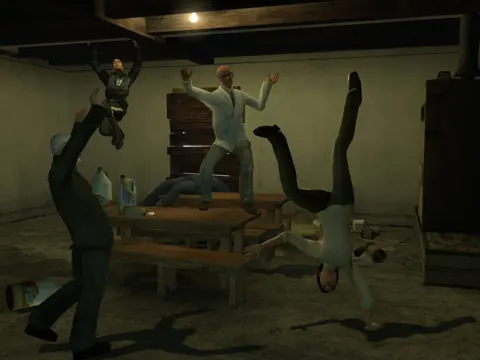
Once configured, the appeal is familiar: spawn props, weld together a questionable vehicle, pose ragdolls, or experiment with community addons. Touchscreen controls bring those tools to your phone, but addons with desktop-specific components need extra attention.
Install GDroid and Add Your Game Files
Start with a copy of Garry’s Mod on Steam. GDroid requires ownership of the game; a free Steam account alone does not supply its retail content.
Allow about 7GB for the launcher, game files, and addons, with additional space for a growing collection. The small APK download is only the launcher, so its file size does not represent the complete installation.
Choose the Android build
- Open GDroid’s Releases page.
- Select
GDroid-<version>.apkfor an ARM64 device, orGDroid-<version>-armv7.apkfor a 32-bit ARM device. - Open the downloaded APK and allow installation from your browser or file manager when Android prompts you.
- Launch GDroid and grant the file access it needs to manage game content.
Next, choose one of the content installation methods below.
Import an existing Steam installation
If Garry’s Mod is already installed on your computer, transfer its content:
- In Steam, open Garry’s Mod → Manage → Browse local files.
- Copy the
garrysmod,sourceengine, andplatformfolders to your Android device. - In GDroid, select Import game files.
- Choose the parent folder containing those three folders.
- Wait until the launcher’s content check reports ready, then select Play.
Transfer copies if you want to preserve the folders in their original location. The importer moves local files when possible and copies them when moving is unavailable.
For manual placement, put all three folders directly inside /sdcard/srceng/. Avoid adding another enclosing folder between srceng and the three content folders.
Download your owned copy through the launcher
GDroid also offers a Download from Steam option:
- Open Download from Steam.
- Enter your Steam login, select Garry’s Mod, and choose your language.
- Select Download selected game and complete Steam Guard if requested.
- Wait for installation to finish, then return to the launcher.
Downloads can be paused and resumed from that screen. Signing in by itself does not download the game.
Set Up Touch Controls Before Building
GDroid divides basic movement between the two sides of the screen: drag on the left to move and on the right to look. On-screen buttons handle actions such as jumping, crouching, switching weapons, and opening the spawn and context menus.
Menu interaction has its own gestures:
- Tap to select an item.
- Drag to move interface controls.
- Hold an element for about half a second to right-click it.
Use the gear button to edit the touch layout. Move frequently used controls into comfortable positions before starting a construction project; opening menus and manipulating props are actions you’ll repeat constantly.
For addons that require extra keyboard inputs, open Settings & tools → Custom buttons and add the necessary keys.
The default Play button opens the main menu. Choose Play a map… to launch a map directly, or change the default destination through Settings & tools → Start at.
Install Workshop Addons and Handle Missing Assets
GDroid supports downloading a Steam Workshop item or collection through Download from Steam using its URL or ID. After installation, enable or disable that content in Mod manager.
For maps included in enabled addons, select Play Workshop map….
You can also install local addon folders or .gma files by placing them in:
/sdcard/srceng/garrysmod/addons/
Start with a small addon selection and add more after launching successfully. This makes it easier to isolate a troublesome addition if something stops working.
Understand the compatibility limits
An addon that depends on another game’s assets still needs those assets. A PC-only native binary module requires an Android-compatible version; importing the addon’s files does not convert that module.
Missing textures and large ERROR models can also point to incomplete content or addon installation problems. Check the required content before replacing the launcher.
The desktop game’s content changes help explain why older setup advice can be misleading:
- The July 2025 Update added most Counter-Strike: Source and Half-Life 2 Episodic content to the base game.
- Maps from those games, voice-over files, and music were excluded.
- Half-Life 2: Episode 2 content became available in the spawn menu for every player.
Those changes concern the desktop game’s content. They do not make every addon independent of other games or remove Android binary compatibility requirements.
Configure Multiplayer and Keep Your Installation Updated
For GDroid’s multiplayer sign-in, enable Remember Steam sign-in on this device, select Sign in for multiplayer, and wait for the saved sign-in confirmation. Keep this separate from downloading game content: completing one does not perform the other.
Before updating GDroid, export your saves through Settings & tools → Back up saves. Then quit the game and finish any active content imports or Steam downloads.
The launcher’s updater is under Settings & tools → Updates:
- Select Install update.
- Allow installations from GDroid in Android settings if prompted.
- Return to the launcher and select Install update again.
- Confirm Android’s installation prompt.
Updating over the existing app preserves saves, settings, and game files. Automatic update checks start disabled; enabling them checks at most once a day when the launcher opens. Downloading and installing still require your choice.
Keep desktop and Android updates distinct. The September 2026 Update introduced 64-bit Windows clients, dedicated servers, and most developer tools, reducing the risk of exhausting the 32-bit address space with heavy servers or addon collections. Select that Windows client through Steam’s launch options when playing on a computer; Android uses GDroid’s separate builds.
Something wrong or out of date on this page? How to report a correction
Continue with
 Garry's Mod Download: Install on PC, Mac, and LinuxStart your Garry's Mod download on Steam, compare PC requirements, learn about Mac and Linux support, and set up Workshop addons before you start playing.
Continue exploring
Join the community
Official channels for news, updates and player help: